Manage Screen Time with Circle Parental Controls
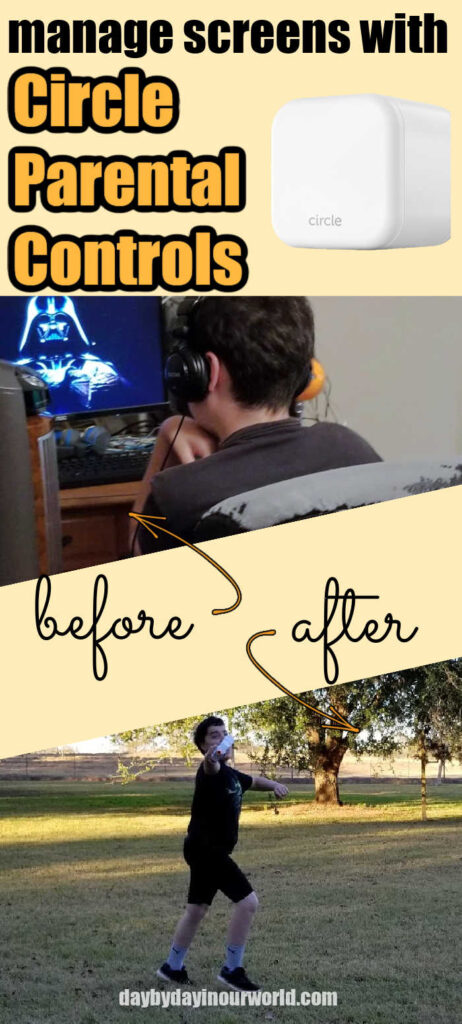
Learn how you can manage screen time with Circle Parental Controls for any family member. Getting real about the struggle to balance it all while homeschooling.
Technology can be wonderful.
Learning can be delivered online (either for remote schooling or specific homeschool classes for your child.)
You can stream a show when you want to see it instead of needing to follow a set schedule.
Communicating with family and friends who live far away is made easier.
Shopping can happen with a few clicks while wearing comfy clothes.
But it can also be a source of temptation and a devourer of time if left unchecked.
This becomes even more important for those of us raising kids.
We want them to learn how to safely navigate the online world, but do not want to give carte blanche access to all there is.
I wanted to share our experience using Circle Home Plus as well as the why behind a device and service like this one.
We were provided with a Circle Home Plus unit to facilitate this post through a sponsored campaign by Moms Meet. Compensation for this post was provided and this page may contain affiliate links. As always, all opinions are our own.
UPDATE: Circle is now part of Aura, the leader in family online safety.
Manage Screen Time for Your Family
With so much school related work (or for adults, actual work work) requiring the use of computers or other screens, it can become more important to manage screen time.
After all, there is a big world to explore and it isn’t just online.
In our case, we’ve got about 12 acres of land to wander while the weather is good. Almost half of it is wooded, perfect for exploration.

But, using screens is a part of life.
When it comes to screen time, there are 2 main things to be controlled and/or monitored:
How much time is spent online
Where time is spent
Determining Screen Time for Each Family Member
First off, if you talk to a doctor (especially a pediatrician) they will tell you to limit the total screen time for your child. This means anything with a screen: computer, iPad/tablet, or television.
They younger the child, the less screen time that should be allowed.
You can find a wealth of information on the Media and Children page from the American Academy of Pediatrics.
The takeaway for school-aged kids is this: “For children ages 6 and older, place consistent limits on the time spent using media, and the types of media, and make sure media does not take the place of adequate sleep, physical activity and other behaviors essential to health.”
The Family Media Plan on their site includes a calculator to help you determine maximum screen time once you account for sleep, physical activity, school, etc. It already contains the amount of sleep they believe a child that age needs as well as 1 hour of physical activity.
For my 11 year old, I put in 4 hours for school work (since he is homeschooled), 1 hour for reading, 30 minutes of chores, an hour of meal times, and 1 hour of personal care. This calculated that he could have up to 5 hours of screen time.
That seemed about right when I considered time spent watching a show with me or the family as well as his obsession with YouTube videos on different lore or recipes. If his schoolwork took more time to do, then he’d have less available screen time.

Considering What Apps and Websites a Family Member Has Access To
This one is very individualistic for each family and their family members.
My youngest is allowed to watch some videos on YouTube. However, when he was younger I wouldn’t want him surfing that page on his own.
Social media can be fun and a great way to stay connected to others.
Yet, it also has a dark side, whether it is cyberbullying, a predator, or advertising you’d rather a child not see.
Part of a screen time management plan includes limits on what is permitted for each family member.

And as much as we may want to trust our child to do this on their own, I know all too well how much temptation there can be.
When we lived in Alaska, we homeschooled through a school district’s program with laptops available that included in-house tech support. A (shared) laptop was acting up and I dropped it off for the tech to see what could be done.
Later that day, I got an uncomfortable call from the tech about browsing history. My teen had been actively searching and opening pages that showed a particular celebrity without her top.
Taking away the device from him was the short term solution.
But, it wasn’t a viable long term solution.
Finding a Solution to Manage Screen Time
There are many approaches to managing screen time.
First possible approach I’ve had friends use is to always be present when a child is on a screen.
This can work well if you have a single family computer in a public room.
But, with each of my boys having their own device in different rooms, I would spend the entire day hovering over their shoulders.
My adult boys go on about just blocking things and setting time limits on the router.
However, I don’t find it very helpful nor a convenient way to see where the other boys are going.
Sorry, but this mom wants something convenient and easy to use.
That’s why testing out the Circle Home Plus with the Circle Parental Controls app was so appealing to me.
About Circle Parental Controls
Circle Home Plus is a small white box that gets plugged into your router.
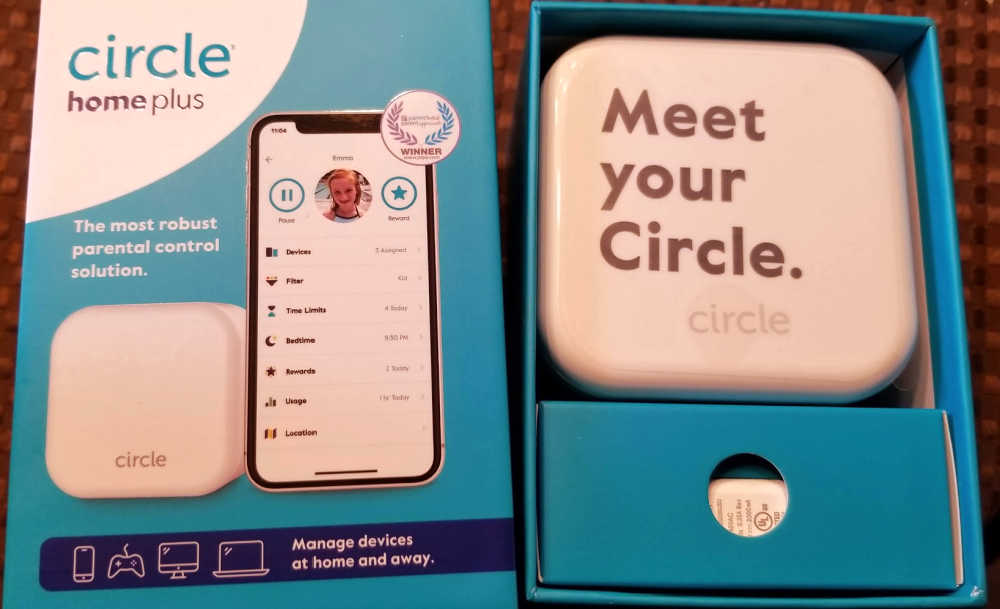
Circle Home Plus typically retails for $69 for a three-month subscription, $129 for a one-year subscription, or $349 for a lifetime subscription (all plans include the Circle Home Plus device and Circle App access).
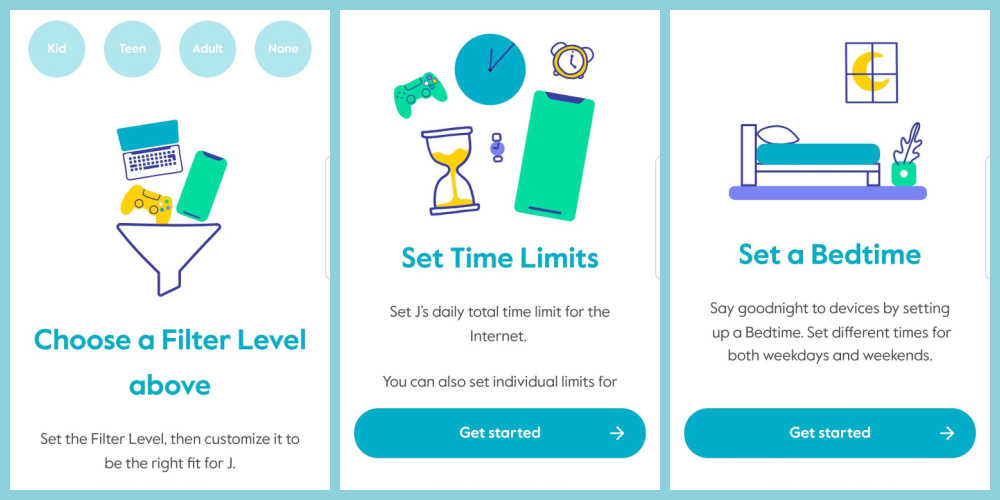
Set up is done easily via the Circle Parental Controls app. Like SUPER easy with prompts for all the steps.
Once you have set up the Circle Home Plus device, you can start adding family members to your account.
Each family member’s account is set up through the app and includes
- determining the total time permitted across devices assigned to them
- establishing bedtime (customizable by day of the week) or predetermined off time
- what limits to put on the content or sites they can access (filters)
Every device connected to your home network is detected as it joins. Then you can assign devices to the appropriate child or make it a ‘home’ device.
You can set a PIN for your app, just in case there is any worry that a child might try to change settings on their profile.
One Mom’s Experience Using Circle Parental Controls
For this review, I created profiles for my younger boys (ages 11 and 17) as well as myself.
The setup was easy with one exception: not every computer was named in such a way that I could easily determine which family member used it.
The best way to figure it out is to look at each device for the name is has been given. (You can rename devices, but we haven’t done that.)
DESKTOP-P75M2HK doesn’t tell me much beyond it is a computer. This particular name is the Dell tablet I use on a regular basis (since it has a keyboard that attaches and is lightweight for travel.)
I elected to keep it simple to start with the filter settings and selected teen. This one filters out mature or adult-oriented content.
Things I Like about Circle Parental Controls
I’ll start by saying that Circle Home Plus and the Circle Parental Controls app worked very much in line with what I was expecting (and hoping!) it would do.
Easy to Monitor Usage
Once you have the correct device listed it is SO easy to monitor what is going on.
I’m busy and do not want to spend time digging around for information.
When you click on a family member’s profile, you can see how much time has been spent on their devices for the day.
There is also the ability to see a summary of usage or a more detailed history (minute by minute.)
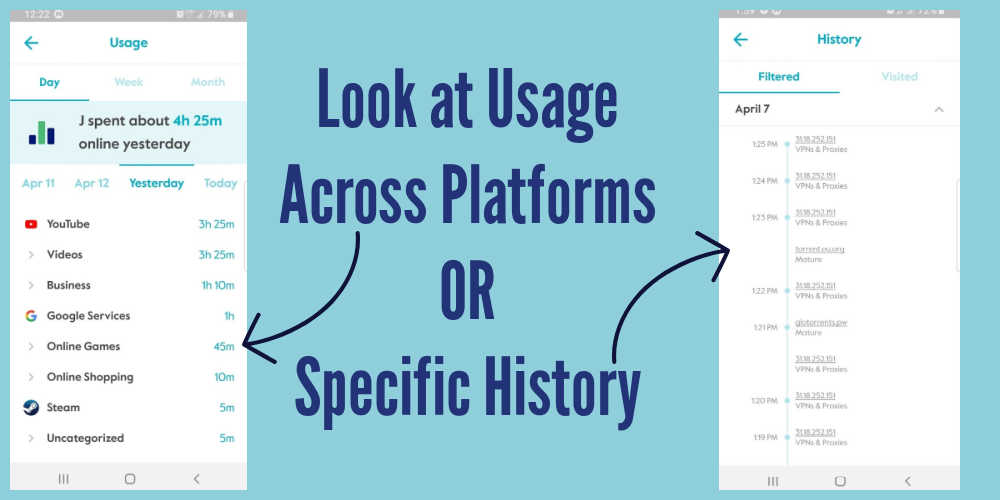
On that detailed history page, you can elect to see if anything was filtered. (I initially had the wrong device assigned to my 17 year old and found out when he told me it was blocking Reddit on him.)
Setting Downtime / Bedtime
Sleep is important and downtime before bedtime helps set the stage for a good night’s sleep.
Something that I noticed happening after the boys got a bit older was they wanted to stay up later than my husband and I usually do.
By using the Bedtime feature, I can make sure assigned devices are not able to access the internet when they should be sleeping.
No more wondering if a boy is playing video games online after bedtime.
You can do this with their cell phone as well, if you add it to their profile. No more notifications waking them up or social media luring them when they should be sleeping.
Alerts for Circle Home Plus
I like seeing is when the device is offline.
It comes as an alert on my cell phone.
And I do not have to be home and connected to the Wi-Fi to get the alert.
Years of not having many restrictions meant my youngest has ‘fought’ the restrictions imposed by me through the app and device.
He got cheeky when I was gone from the house and unplugged it. I figured it out when arriving back home and hearing the internet had not gone down (which sadly is a real issue for us.)
The Pause Button
A beauty of homeschooling the boys is that they can find more time for fun when work is done quickly.
But, sometimes, the internet calls strongly and they say something is done when it isn’t.
Or, maybe it is their chores left unfinished.
Either way, I can hit the pause button for their profile to disrupt internet access.
Then it is time for me to redirect them to what they should have been doing.
Giving a Reward is Easy
Just like I can pause, there is the ability to give a reward in the form of more time online.
I did this for one child who unknowingly used up his internet time to stream music while doing schoolwork.
He wasn’t allowed to watch a show with my husband and I that night, so I gave him enough time to watch a short show on his own device.
A Side Benefit to Using Circle Parental Controls
Remember how I said I added MY main device to the app?
Doing this helped me to see at a glance where I’ve been spending time online. I can tell which days I was mostly gone from the house or working in the yard.
And, I can see how much time each day I have this blog and social media up on the screen.
(I’m not sure where the TikTok came from unless it is seeing tweets with TikTok shares. )
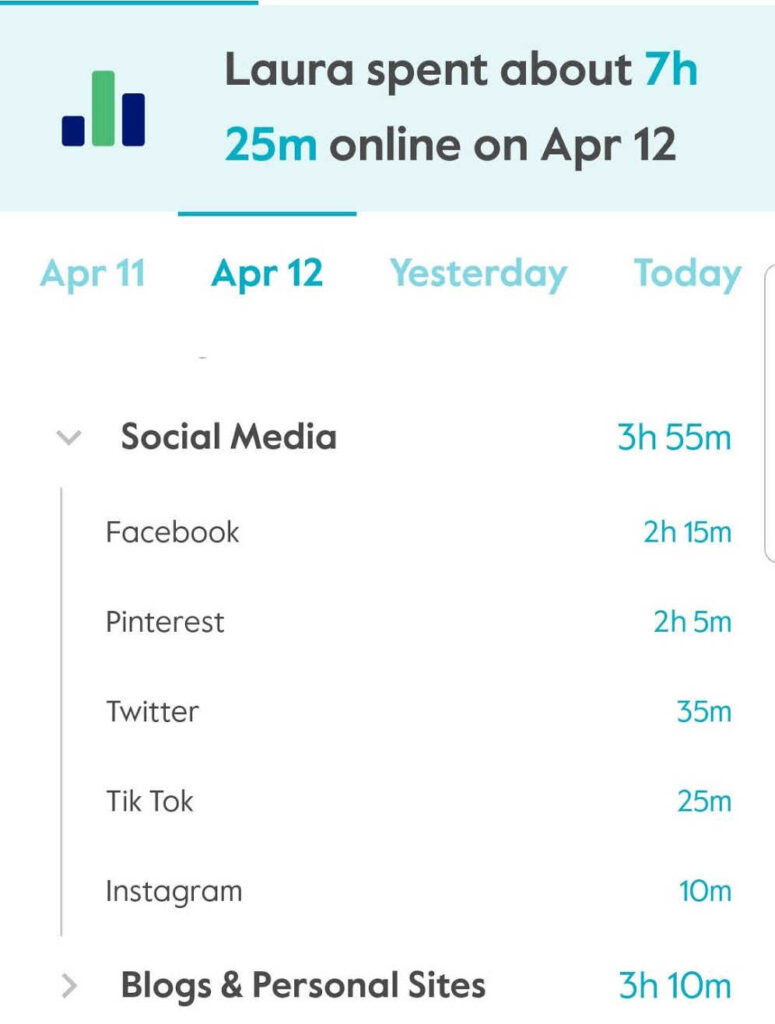
I haven’t gone so far as to set a time limit or bedtime for my devices. But, I could if I needed a more firm reminder to get off!
Here is to more family time playing games or exploring the outdoors!

Do you struggle with how to best manage screen time for your family?
Would Circle Parental Controls help you do it?